
WhatsApp Voice Notes: Converting OPUS So They Play Everywhere
WhatsApp voice notes export as OPUS files most players won't touch. Converting them to MP3, stitching a long back-and-forth into one file, and saving notes before they expire.
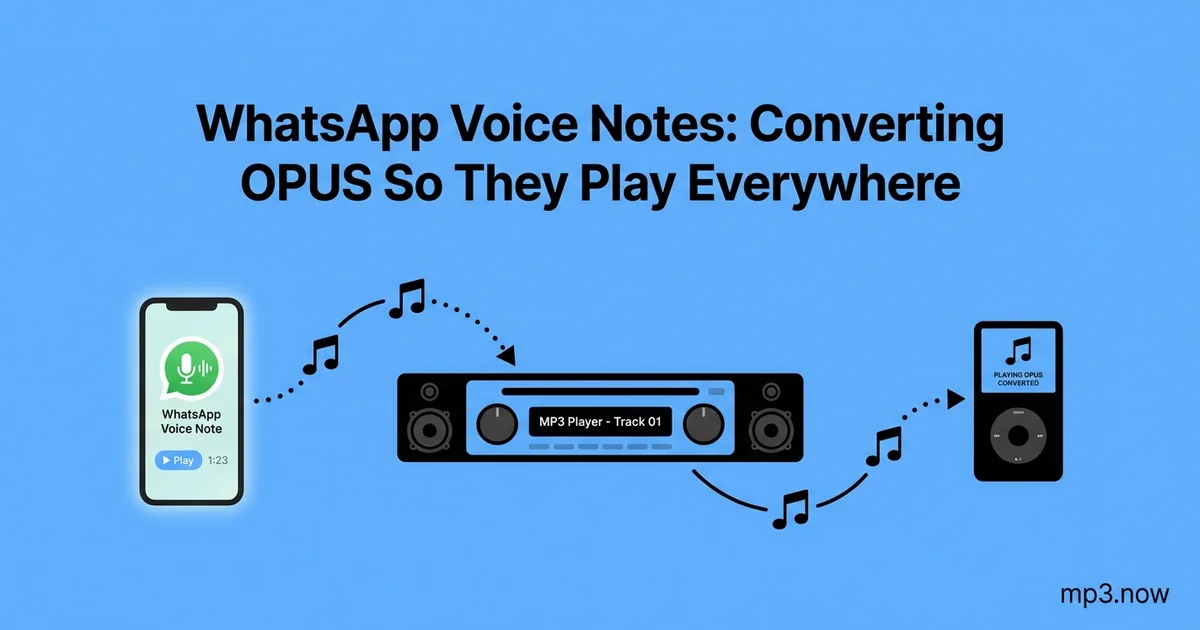
Somewhere in your WhatsApp threads is audio worth keeping: a grandparent telling a story, a friend's congratulations, directions you'll need again, a voice you want to save. Then you try to get a voice note out of the app and discover what WhatsApp actually hands you — a file with a name like PTT-20260214-WA0007.opus that Windows Media Player shrugs at, many phones won't open outside WhatsApp, and upload forms reject outright.
This guide explains what these files are, how to export them from Android and iPhone, how to convert them to MP3 that plays everywhere, and how to stitch a long back-and-forth of notes into a single listenable file.
What WhatsApp voice notes actually are
Modern WhatsApp records voice notes with the Opus codec in an Ogg container, usually surfacing with an .opus extension. Opus is a genuinely superb codec — it delivers intelligible speech at bitrates MP3 can't touch, which is why WhatsApp, Discord, and Signal all use it — but superb and compatible are different things. Support outside chat apps and modern browsers is spotty: older desktop players, car stereos, editing tools, and most audio upload forms expect MP3 or WAV and treat .opus as a foreign object. Older exports and voicemail forwards can also arrive as .amr or .aac, legacy phone codecs with even worse desktop support.
Two practical notes before converting anything. First, quality: voice notes are recorded around 16–24 kbps mono — perfectly clear speech, but nothing hi-fi. Converting to MP3 keeps that clarity; it cannot add fidelity that was never captured. Second, urgency: WhatsApp's disappearing-message and view-once settings, chat clean-up apps, and phone migrations all destroy voice notes silently. If a note matters, export it now, not someday.
Getting the files out of WhatsApp
On Android
- Direct from storage: a file manager shows voice notes under WhatsApp's media folders (typically Internal storage > Android/media > com.whatsapp > WhatsApp > Media > WhatsApp Voice Notes, organized by week). Copy the .opus files out.
- Per message: long-press the voice note > Share > save to Drive, email it to yourself, or send to a file manager.
On iPhone
- Per message: long-press the note > Forward > share sheet > Save to Files. iOS sometimes wraps the export as .m4a instead of .opus — either converts fine.
- Whole conversation: chat name > Export Chat > Attach Media produces an archive containing every audio file in the thread — the efficient route when you're saving months of notes at once.
Desktop shortcut
In WhatsApp Web or the desktop app, hover a voice note's menu and download it directly — often the fastest path when you're already at a computer.
Converting to MP3
Run the exported files through the OPUS to MP3 converter: upload, convert, download. For the stragglers in other legacy formats, the AMR to MP3 converter handles old-style notes and forwarded voicemails, and iPhone .m4a exports go through the M4A to MP3 converter. Sensible settings for all of them: mono, 96–128 kbps. That's already generous for the source material, and the resulting MP3 plays on every device, player, and upload form built since the 1990s.
Stitching a conversation into one file
A meaningful exchange rarely lives in one note — it's fifteen notes over an afternoon, each a fragment. Played from a folder they're a mess of taps; archived separately they lose their thread. The fix is merging:
- Order first. WhatsApp's filenames sort chronologically (date, then sequence number), so keep the original names until after the merge.
- Convert all fragments to MP3 at the same bitrate so the merged file is uniform.
- Join them with the MP3 merger in order — the result is one continuous file that plays like a conversation instead of a scavenger hunt. The FAQ on merging MP3 files walks through it.
One refinement worth the extra minute: notes recorded at different distances from the mouth can vary a lot in volume, so a normalize pass on the merged file saves the listener from riding the volume control through your archive.
Archiving the ones that matter
For voice notes you're keeping for decades — a parent's stories, a child's early sentences — treat them like the family records they are:
- Name files with date and speaker:
2026-02-14-grandma-wedding-story.mp3beatsPTT-20260214-WA0007forever. - Store copies in two places (local drive plus cloud). Chat apps are not archives; accounts get lost, phones get wiped.
- Keep the converted MP3 as your working copy. At these source bitrates there is no meaningful benefit to preserving the .opus once you've verified the MP3.
Common problems and quick fixes
- The exported file has no extension or a strange one (some Android builds produce .waptt or double extensions): rename it to end in .opus before converting — the audio inside is standard.
- A note plays in WhatsApp but the exported copy is silent or corrupt: re-export it; interrupted downloads inside the chat produce stub files. Opening the chat and letting the note fully play first forces a complete download.
- Dozens of notes to convert: convert them in batches rather than one at a time, keeping WhatsApp's chronological filenames until after any merge so order survives.
- The recipient "can't open" your converted file: confirm you actually sent the .mp3 and not the original .opus sitting beside it in the same folder — the classic slip.
The bottom line
WhatsApp hands you voice notes in Opus, a great codec with poor manners outside chat apps. Export the files while they still exist, convert with the OPUS to MP3 (or AMR to MP3) converter, merge multi-note exchanges into single files, and name your archive like you'll want to find it in twenty years — because for the notes worth saving, you will.